24
types of fields

Platform
Forms, workflows, and data centralized in a single tool.
Configured in minutes, adopted without training.
24
types of fields
7
types of views
0
required line of code
20min
to see your specific case
Each user only sees what concerns them, with the presentation best suited to their tasks.
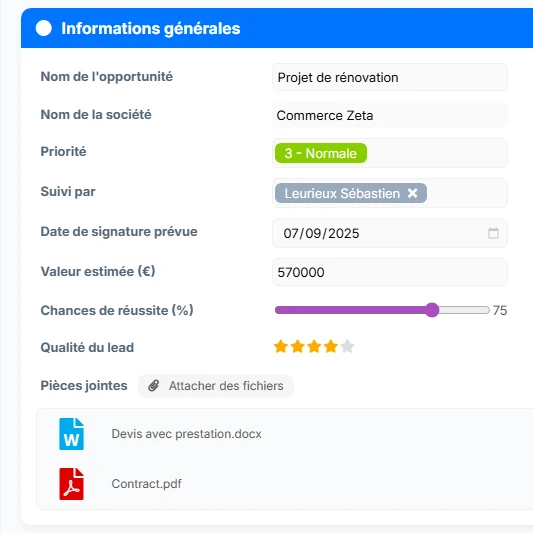
Create simple or complex forms in minutes. Each field, each section, each rule is configurable without touching a line of code.
• 24 types of fields available (text, date, list, AI...)
• Drag-and-drop layout
• Activate only the features useful to your users
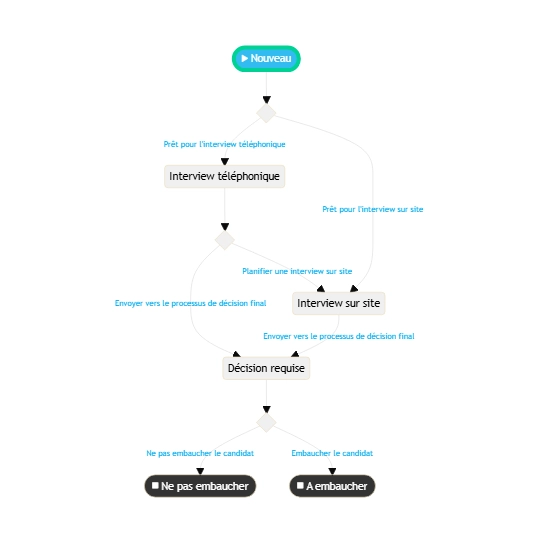
Define the steps, decisions, and actors. The workflow then runs automatically, without manual intervention.
• Steps, actors, and decisions configurable in just a few minutes
• Conditions and branches based on the entered data
• Automatic notifications at each transition
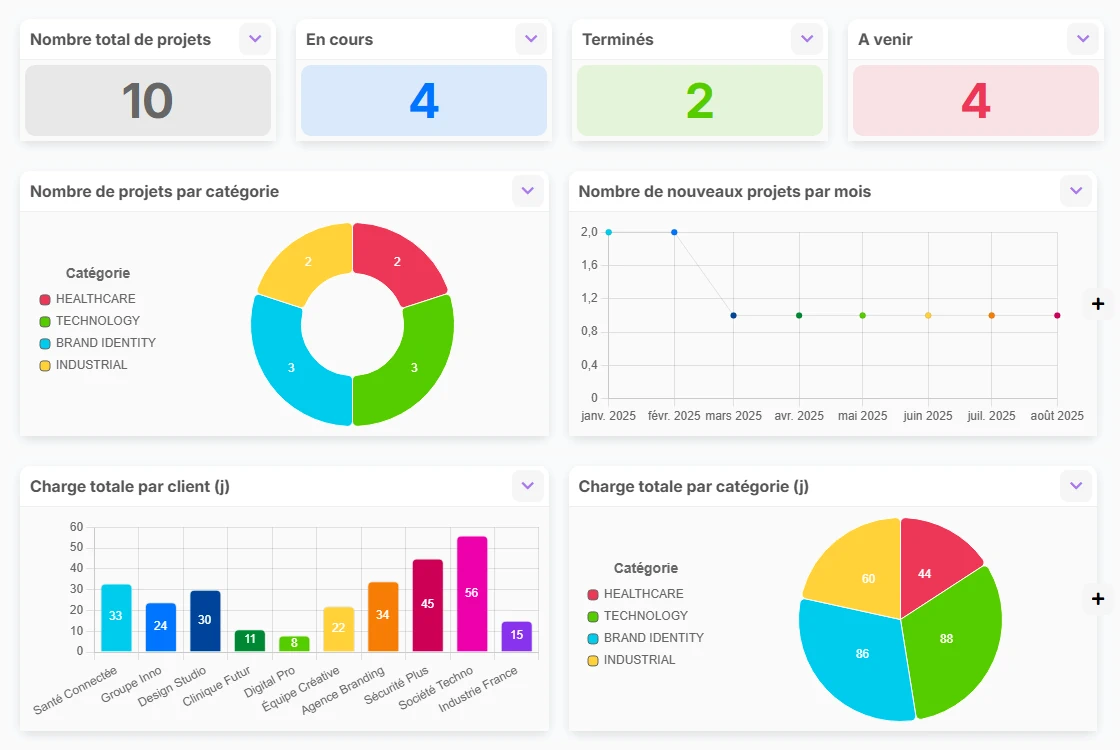
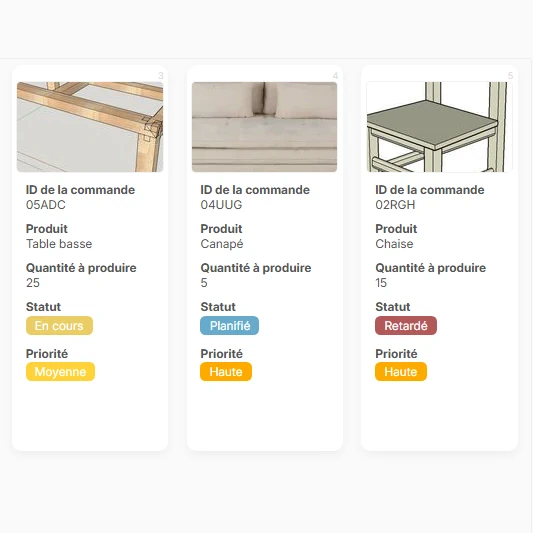
Table, kanban, calendar, timeline, map, dashboard... Each user works with a view tailored to their tasks.
• Multi-level filters, sorting, and grouping
• Automatic aggregations by group
• Each user only sees what concerns them
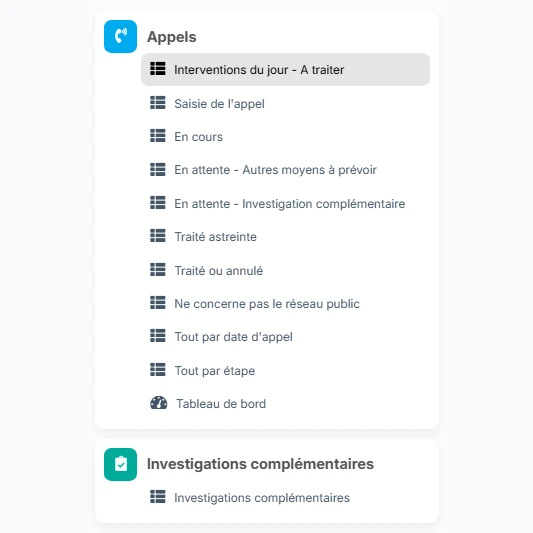
The sidebar condenses everything each user needs. No training, no documentation to read. If you prefer tabs, it's just one click!
• Side navigation or tabs according to your preferences
• Visibility by user or by team
• Very simple addition and customization of your lists
• Quick reorganization via drag & drop
Creating rich forms requires a variety of field types.
We've got you covered!
Add a short text to any element. The Text field is used for simple fields such as a name, a title, etc...
The Number field allows you to process numeric information such as amounts, and you can also choose the units.
The Date field allows you to select a date in a calendar, for example to set an appointment, a deadline...
The Time control offers a drop-down list of time slots whose increment can be configured (every 5 minutes for example).
The Paragraph field allows you to enter longer and multi-line texts, for example to add comments, descriptions, etc...
The AI Paragraph field allows you to automatically generate the content of the field according to your instructions, thanks to OpenAI's AI.
The Drop-down List control offers to choose from a list of values possibly associated with a color.
Drop-down lists can, if necessary, receive several values and act as tags.
The Check box field allows you to create checklists or to switch the state of a record easily.
The Progress Bar field is useful for visually displaying the progress of a task or project.
The Rating field is useful for rating items from 1 to 10, and you can also choose its symbol.
The Attached Files field is used to embed one or more attachments to your data, and images can be previewed directly.
This type of field dynamically generates a drop-down list of values by retrieving information from a column in your views.
This type of field allows you to simultaneously retrieve several values from another record by selecting it in a view.
The Collaborators field displays in a drop-down list the address book of users and groups in your organization.
The Color field is used to assign a color to a data item by selecting it from a palette.
The Icon control allows you to associate an icon to an object from a palette of more than 1000 icons.
The Password field is a text field whose characters are masked in order to keep certain data confidential.
The Link field is very powerful because it allows you to connect your records to each other and navigate between them by hyper-link.
This type of field is used to automatically retrieve a value in a record linked by a Link field.
This type of field is used to perform a calculation (ex: sum, average) from all the records linked by a Link field.
generate an image via AI directly from this field and the image file will be stored as an attachment
The Map field allows you to display a location on a map and interact with it.
Rich text allows you to manage formatted text with common features (titles, bold, italic, underline, color, etc...)
Tell us about your project,
we'll show you how to achieve it in 20 minutes